
In our Article 1, we saw how to create a basic React application that displays articles from a WordPress site via its REST API. We put in place the fundamentals: recovery of data from articles, routing, addition of Tailwind CSS and basic styling.
Today we will go further by adding essential features for a complete website:
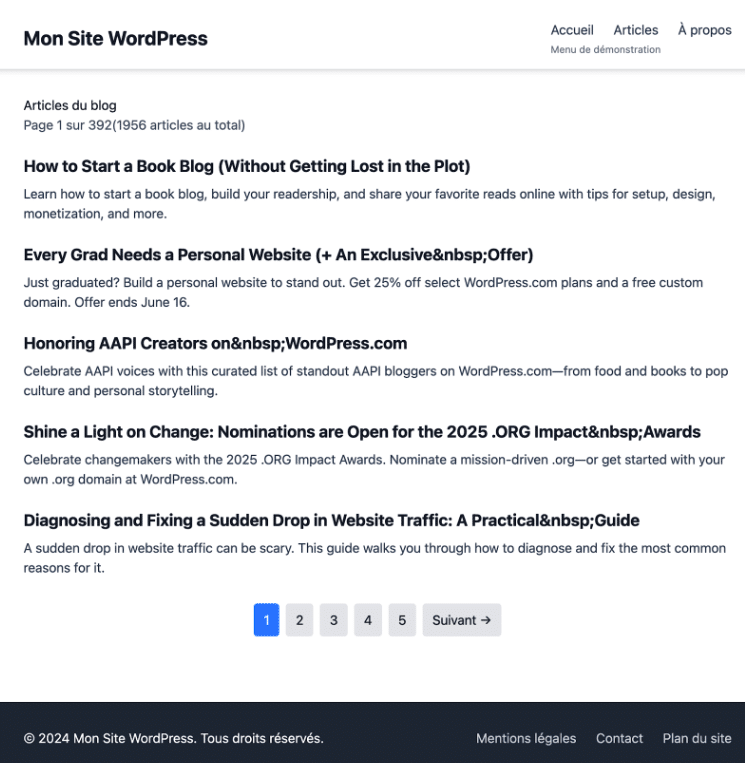
- Pagination to navigate between articles pages
- Navigation Menus (header and footer) recovered via API
- WordPress pages (and not just the articles)
These additions will transform our basic application into a real functional website.
1. Setting up pagination
Pagination is essential when you have a lot of articles. By default, the WordPress API returns 10 items per page, but we can configure this number and navigate between pages.
1.1 Understand the pagination of WordPress API
The WordPress API offers several ways to manage pagination:
- per page : number of items per page (default 10, maximum 100)
- page : page number to be recovered
- Response heads : X-WP-Total (total number of elements) and X-WP-TotalPages (total number of pages)
For example, to recover page 2 with 5 items per page:
GET /wp-json/wp/v2/posts?page=2&per_page=5
Important note : The example above uses the standard WordPress API. For this tutorial, we will use the Public API of WordPress.com which has a slightly different structure. Here it is to use wordpress.com to have content that is not cracked (as on fr.wordpress.org) for the tutorial suite.
Difference between standard WordPress API and WordPress.com
Standard WordPress API (your-site.com):
https://votre-site.com/wp-json/wp/v2/posts
https://votre-site.com/wp-json/wp/v2/pages
Public WordPress.com API :
https://public-api.wordpress.com/wp/v2/sites/nom-du-site/posts
https://public-api.wordpress.com/wp/v2/sites/nom-du-site/pages
In our code, we configure the basic URL like this:
VITE_WP_API_URL=https://public-api.wordpress.com/wp/v2/sites/en.blog.wordpress.com
Then our requests simply add /posts, /pages, etc. to build the complete URL. This approach makes it easy to switch between different APIs by just changing the environment variable.
But to use the API of your own site, keep the classic structure:
VITE_WP_API_URL=https://votre-site.com/wp-json
1.2 Modify roads to support pagination
We had declared roads for our articles, we must now support pagination. We will therefore modify our routes to accept an optional page parameter and add WordPress page support:
// app/routes.ts
import type { RouteConfig } from "@react-router/dev/routes";

export default [
	{
		path: "/",
		file: "routes/_index.tsx"
	},
	{
		path: "/page/:pageNumber", // ex: /page/2
		file: "routes/page.$pageNumber.tsx"
	},
	{
		path: "/post/:id",
		file: "routes/post.$id.tsx"
	},
	{
		path: "/:slug",
		file: "routes/$slug.tsx"
	}
] satisfies RouteConfig;
1.3 Create the Pagination Component
Which says pagination means component. So we need to create a component for pagination, which will allow us to send requests to the API with the right page parameter.
// app/components/Pagination.jsx
import { Link } from 'react-router';
export default function Pagination({ currentPage, totalPages, baseUrl = "" }) {
	if (totalPages <= 1) return null;

	const pages = [];
	const maxVisiblePages = 5;

	// Calcul des pages à afficher
	let startPage = Math.max(1, currentPage - Math.floor(maxVisiblePages / 2));
	let endPage = Math.min(totalPages, startPage + maxVisiblePages - 1);

	if (endPage - startPage + 1 < maxVisiblePages) {
		startPage = Math.max(1, endPage - maxVisiblePages + 1);
	}

	// Bouton "Précédent"
	if (currentPage > 1) {
		const prevUrl = currentPage === 2 ? "/" : `/page/${currentPage - 1}`;
		pages.push(
			<Link
				key="prev"
				to={prevUrl}
				className="px-3 py-2 bg-gray-200 hover:bg-gray-300 rounded"
			>
				← Précédent
			</Link>
		);
	}

	// Pages numériques
	for (let i = startPage; i <= endPage; i++) {
		const url = i === 1 ? "/" : `/page/${i}`;
		pages.push(
			<Link
key={i}
				to={url}
				className={`px-3 py-2 rounded ${
					i === currentPage
						? 'bg-blue-500 text-white'
						: 'bg-gray-200 hover:bg-gray-300'
				}`}
			>
				{i}
			</Link>
		);
	}

	// Bouton "Suivant"
	if (currentPage < totalPages) {
		pages.push(
			<Link
				key="next"
				to={`/page/${currentPage + 1}`}
				className="px-3 py-2 bg-gray-200 hover:bg-gray-300 rounded"
			>
				Suivant →
			</Link>
		);
	}

	return (
		<nav className="flex justify-center space-x-2 mt-8">
			{pages}
		</nav>
	);
}
1.4 Update the host road with pagination
Since here our home page displays articles, we need to change our home path to manage pagination:
// app/routes/_index.tsx
import PostsList from "../components/PostsList";
import type { LoaderFunctionArgs } from "react-router";

const API_URL = import.meta.env.VITE_WP_API_URL;
const POSTS_PER_PAGE = 5;

export async function loader({ request }: LoaderFunctionArgs) {
	try {
		const page = 1; // Page 1 pour la route d'accueil

		const response = await fetch(
			`${API_URL}/posts?page=${page}&per_page=${POSTS_PER_PAGE}&_embed`
		);

		if (!response.ok) {
			throw new Error(`API responded with status: ${response.status}`);
		}

		const posts = await response.json();

		// Récupération des headers de pagination
		const totalItems = parseInt(response.headers.get('X-WP-Total') || '0');
		const totalPages = parseInt(response.headers.get('X-WP-TotalPages') || '1');

		return {
			posts,
			pagination: {
				currentPage: page,
				totalPages,
				totalItems
			}
		};
	} catch (error) {
		console.error("Error fetching posts from server:", error);
		return {
			posts: [],
			pagination: { currentPage: 1, totalPages: 1, totalItems: 0 },
			error: error instanceof Error ? error.message : "Unknown error"
		};
	}
}

export default function Index() {
	return <PostsList />;
}
1.5 Creating the Route for Numbered Pages
We now need to create the route for numbered pages, i.e. pages that display articles on a given page. For example, l /page/2 will display the articles on page 2.
// app/routes/page.$pageNumber.tsx
import PostsList from "../components/PostsList";
import type { LoaderFunctionArgs } from "react-router";

const API_URL = import.meta.env.VITE_WP_API_URL;
const POSTS_PER_PAGE = 5;

export async function loader({ params }: LoaderFunctionArgs) {
	try {
		const pageNumber = parseInt(params.pageNumber || '1');

		if (pageNumber < 1) {
			throw new Error('Page number must be positive');
		}

		// On récupère ici les articles de la page demandée
		const response = await fetch(
			`${API_URL}/posts?page=${pageNumber}&per_page=${POSTS_PER_PAGE}&_embed`
		);

		if (!response.ok) {
			throw new Error(`API responded with status: ${response.status}`);
		}

		const posts = await response.json();

		const totalItems = parseInt(response.headers.get('X-WP-Total') || '0');
		const totalPages = parseInt(response.headers.get('X-WP-TotalPages') || '1');

		return {
			posts,
			pagination: {
				currentPage: pageNumber,
				totalPages,
				totalItems
			}
		};
	} catch (error) {
		console.error("Error fetching posts from server:", error);
		return {
			posts: [],
			pagination: { currentPage: 1, totalPages: 1, totalItems: 0 },
			error: error instanceof Error ? error.message : "Unknown error"
		};
	}
}

export default function PageNumber() {
	return <PostsList />;
}
1.6 Update PostsList Component
Now that the Pagination component is created, we can use it in the PostsList component. It will display on the page that lists the articles and take into account the page parameter passed in the url.
// app/components/PostsList.jsx
import { Link, useLoaderData } from 'react-router';
import Pagination from './Pagination';

export default function PostsList() {
	const { posts = [], pagination, error: loaderError } = useLoaderData();

	if (loaderError) {
		return (
			<div>
				<h1>Erreur lors du chargement</h1>
				<p>Impossible de charger les articles: {loaderError}</p>
			</div>
		);
	}

	return (
		<div>
			<h1>Articles du blog</h1>
			{pagination && (
				<p className="text-gray-600 mb-6">
					Page {pagination.currentPage} sur {pagination.totalPages}
					({pagination.totalItems} articles au total)
				</p>
			)}

			<ul className="space-y-6">
				{posts.length === 0 ? (
					<p>Aucun article trouvé</p>
				) : (
					posts.map(post => (
						<li key={post.id}>
							<h2 className="text-xl font-bold mb-2">
								<Link to={`/post/${post.id}`} className="hover:text-blue-600">
									{post.title.rendered}
								</Link>
							</h2>
							<div
								className="prose text-gray-700"
								dangerouslySetInnerHTML={{ __html: post.excerpt.rendered }}
							/>
						</li>
					))
				)}
			</ul>

			{pagination && (
				<Pagination
					currentPage={pagination.currentPage}
					totalPages={pagination.totalPages}
				/>
			)}
		</div>
	);
}
2. Add navigation menus
Are you still here? Okay, let's go on. We will now tackle navigation menus. WordPress offers an API to recover menus, but it requires the addition of custom code in your own WordPress site because by default the menus are not exposed via the REST API for security reasons.
Important : Menu endpoints are not available by default in WordPress. They must be added via PHP code below in YOUR WordPress site. If you test with an external site (such as en.wordpress.org), the menus will not work and the application that is built in this tutorial will use fallback menus.
2.1 Enable menu API in WordPress
To display the menus via the REST API, add this code to the functions.php file of your WordPress theme:
// Exposer les menus via l'API REST
function wp_api_menus_init() {
    register_rest_route('wp/v2', '/menus', array(
        'methods' => 'GET',
        'callback' => 'wp_api_menus_get_all_menus',
        'permission_callback' => '__return_true'
    ));

    register_rest_route('wp/v2', '/menus/(?P<id>[a-zA-Z0-9_-]+)', array(
        'methods' => 'GET',
        'callback' => 'wp_api_menus_get_menu_data',
        'permission_callback' => '__return_true'
    ));
}

function wp_api_menus_get_all_menus($data) {
    $menus = wp_get_nav_menus();
    $result = array();

    foreach($menus as $menu) {
        $result[] = array(
            'id' => $menu->slug,
            'name' => $menu->name,
            'slug' => $menu->slug,
            'count' => $menu->count
        );
    }

    return rest_ensure_response($result);
}

function wp_api_menus_get_menu_data($data) {
    $menu_id = $data['id'];
    $menu_items = wp_get_nav_menu_items($menu_id);

    if(!$menu_items) {
        return new WP_Error('no_menu', 'Menu not found', array('status' => 404));
    }

    $menu_data = array();

    foreach($menu_items as $item) {
        $menu_data[] = array(
            'id' => $item->ID,
            'title' => $item->title,
            'url' => $item->url,
            'menu_order' => $item->menu_order,
            'parent' => $item->menu_item_parent,
            'object_id' => $item->object_id,
            'object' => $item->object,
            'type' => $item->type,
            'target' => $item->target
        );
    }

    return rest_ensure_response($menu_data);
}

add_action('rest_api_init', 'wp_api_menus_init');
Thus, you expose the menus of your WordPress site via the API, and our application can thus recover them.
2.2 Create a Header component with menu
Now that we have the menus, we can display them in our application. So we're going to create a Header component that will display the navigation menu that matches the header menu of your WordPress site.
// app/components/Header.jsx
import { Link } from 'react-router';
import { useState, useEffect } from 'react';

const API_URL = import.meta.env.VITE_WP_API_URL;

export default function Header() {
	const [menuItems, setMenuItems] = useState([]);
	const [isLoading, setIsLoading] = useState(true);
	const [hasMenuSupport, setHasMenuSupport] = useState(false);

	// Menu de fallback si les menus WordPress ne sont pas disponibles (car on utilise wordpress.com)
	// ce code ne sera donc pas nécessaire pour votre propre site
	const fallbackMenu = [
		{ id: 1, title: 'Accueil', url: '/' },
		{ id: 2, title: 'Articles', url: '/' },
		{ id: 3, title: 'À propos', url: '/a-propos' }
	];

	useEffect(() => {
		async function fetchMenu() {
			try {
				// On vérifie d'abord si les endpoints de menu existent (grâce au code PHP ajouté dansfunctions.php)
				const checkResponse = await fetch(`${API_URL}/menus`);

				if (checkResponse.ok) {
					setHasMenuSupport(true);
					// On récupère le menu principal s'il existe
					const menuResponse = await fetch(`${API_URL}/menus/main-menu`);
					if (menuResponse.ok) {
						const items = await menuResponse.json();
						setMenuItems(items);
					} else {
						// Menu spécifique non trouvé, on utilise donc le fallback
						setMenuItems(fallbackMenu);
					}
				} else {
					// Pas de support des menus, on utilise le fallback
					setMenuItems(fallbackMenu);
				}
			} catch (error) {
				console.warn('Menus WordPress non disponibles, utilisation du menu de fallback:', error);
				setMenuItems(fallbackMenu);
			} finally {
				setIsLoading(false);
			}
		}

		fetchMenu();
	}, []);

	const convertWordPressUrlToRoute = (url) => {
		// Ici on manipule un peu les URLs WordPress pour les convertir en routes React
		// On convertit les URLs WordPress en routes React
		if (!url) return '/';

		try {
			// On supprime le domaine si présent
			const urlObj = new URL(url);
			let path = urlObj.pathname;

			// On supprime les slashes de fin
			path = path.replace(/\/$/, '') || '/';

			return path;
		} catch (error) {
			// Si l'URL n'est pas valide, on la retourne telle quelle
			return url;
		}
	};

	return (
		<header className="bg-white shadow-md">
			<div className="max-w-4xl mx-auto px-4 py-4">
				<div className="flex justify-between items-center">
					<Link
						to="/"
						className="text-2xl font-bold text-gray-900"
					>
						Mon Site WordPress {/* Remplacer par le titre de votre site */}
					</Link>

					<nav>
						{isLoading ? (
							{/* Tailwind nous permet de faire facilementun skeleton pour le chargement */}
							<div className="animate-pulse flex space-x-4">
								<div className="h-4 bg-gray-300 rounded w-16"></div>
								<div className="h-4 bg-gray-300 rounded w-20"></div>
								<div className="h-4 bg-gray-300 rounded w-14"></div>
							</div>
						) : (
							<div>
								<ul className="flex space-x-6">
									{menuItems.map(item => (
										<li key={item.id}>
											{item.url && item.url.startsWith('http') && !item.url.includes(window?.location?.hostname || '') ? (
												<a
													href={item.url}
													className="text-gray-700 hover:text-blue-600 transition-colors"
													target={item.target || '_blank'}
													rel="noopener noreferrer"
												>
													{item.title}
												</a>
											) : (
												<Link
													to={convertWordPressUrlToRoute(item.url)}
													className="text-gray-700 hover:text-blue-600 transition-colors"
												>
													{item.title}
												</Link>
											)}
										</li>
									))}
								</ul>
								{!hasMenuSupport && (
									{ /* On affiche un message pour indiquer que les menus ne sont pas disponibles (on utilise le fallback)*/ }
									<p className="text-xs text-gray-500 mt-1">Menu de démonstration</p>
								)}
							</div>
						)}
					</nav>
				</div>
			</div>
		</header>
	);
}
2.3 Create a Footer Component
For the footer, it's the same story as for the header. We get the navigation menu that matches the footer menu of your site and create a fallback if the menus are not available.
// app/components/Footer.jsx
import { Link } from 'react-router';
import { useState, useEffect } from 'react';
const API_URL = import.meta.env.VITE_WP_API_URL;
export default function Footer() {
const [menuItems, setMenuItems] = useState([]);
useEffect(() => {
async function fetchFooterMenu() {
try {
const response = await fetch(`${API_URL}/menus/footer-menu`);
if (response.ok) {
const items = await response.json();
setMenuItems(items);
}
} catch (error) {
console.error('Error fetching footer menu:', error);
}
}
fetchFooterMenu();
}, []);
{ /* Puisque l'on utilise un code similaire dans le header on pourrait créer un helper, voir utils/convertWordPressUrlToRoute.ts */ }
const convertWordPressUrlToRoute = (url) => {
if (!url) return '/';
try {
const urlObj = new URL(url);
let path = urlObj.pathname;
path = path.replace(/\/$/, '') || '/';
return path;
} catch (error) {
return url;
}
};
return (
<footer className="bg-gray-800 text-white mt-12">
<div className="max-w-4xl mx-auto px-4 py-8">
<div className="flex flex-col md:flex-row justify-between items-center">
<div className="mb-4 md:mb-0">
<p>© 2025 Mon Site WordPress. Tous droits réservés.</p>
</div>
{menuItems.length > 0 && (
<nav>
<ul className="flex space-x-6">
{menuItems.map(item => (
<li key={item.id}>
{item.url && item.url.startsWith('http') && !item.url.includes(window?.location?.hostname || '') ? (
<a
href={item.url}
className="text-gray-300 hover:text-white transition-colors"
target={item.target || '_blank'}
rel="noopener noreferrer"
>
{item.title}
</a>
) : (
<Link
to={convertWordPressUrlToRoute(item.url)}
className="text-gray-300 hover:text-white transition-colors"
>
{item.title}
</Link>
)}
</li>
))}
</ul>
</nav>
)}
</div>
</div>
</footer>
);
}2.4 Include Header and Footer in the layout
Now that we have our Header and Footer components, we can integrate them into our layout.
// app/root.tsx
import { Outlet, Meta, Scripts } from "react-router";
import Header from "./components/Header";
import Footer from "./components/Footer";
import "./app.css";

{ /* Vous pouvez gérer les méta-données pour le SEO */ }
export function meta() {
	return [
		{ charset: "utf-8" },
		{ name: "viewport", content: "width=device-width, initial-scale=1" },
		{ title: "WordPress React Front" },
		{ name: "description", content: "WordPress React Frontend" }
	];
}

export default function Root() {
	return (
		<html lang="fr">
			<head>
				<Meta />
			</head>
			<body className="bg-gray-50 text-gray-900 min-h-screen flex flex-col">
				<Header />
				<main className="flex-grow">
					<div className="max-w-4xl mx-auto px-4 py-8">
						<Outlet />
					</div>
				</main>
				<Footer />
				<Scripts />
			</body>
		</html>
	);
}
3. WordPress Page Management
Now that we manage articles and menus, we can tackle WordPress pages. The pages are different from the articles: they are usually static and hierarchically organized, so there is no pagination.
3.1 Creating the Route for Pages
As we did earlier, we will create a road for pages. This route will be similar to the route for articles, but it will take a slug parameter that corresponds to the slug of the page.
// app/routes/$slug.tsx
import Page from "../components/Page";
import type { LoaderFunctionArgs } from "react-router";

const API_URL = import.meta.env.VITE_WP_API_URL;

export async function loader({ params }: LoaderFunctionArgs) {
	try {
		const { slug } = params;

		// On récupère la page par son slug
		const response = await fetch(`${API_URL}/pages?slug=${slug}&_embed`);

		if (!response.ok) {
			throw new Error(`API responded with status: ${response.status}`);
		}

		const pages = await response.json();

		// L'API retourne un tableau, même pour un seul élément (on récupère le premier)
		if (pages.length === 0) {
			throw new Error('Page not found');
		}

		const page = pages[0];
		return { page };
	} catch (error) {
		console.error("Error fetching page from server:", error);
		return {
			page: null,
			error: error instanceof Error ? error.message : "Unknown error"
		};
	}
}

export default function PageDetail() {
	return <Page />;
}
3.2 Create the component Page
Our application is now ready to display WordPress pages.
// app/components/Page.jsx
import { useLoaderData } from 'react-router';

export default function Page() {
	const { page, error } = useLoaderData();

	if (error) {
		return (
			<div className="text-center py-12">
				<h1 className="text-3xl font-bold text-gray-900 mb-4">Page non trouvée</h1>
				<p className="text-gray-600 mb-8">
					Désolé, la page que vous recherchez n'existe pas.
				</p>
				<p className="text-red-600">Erreur: {error}</p>
			</div>
		);
	}

	if (!page) {
		return (
			<div className="text-center py-12">
				<div className="animate-pulse">
					<div className="h-8 bg-gray-300 rounded w-3/4 mx-auto mb-4"></div>
					<div className="h-4 bg-gray-300 rounded w-full mb-2"></div>
					<div className="h-4 bg-gray-300 rounded w-5/6 mx-auto"></div>
				</div>
			</div>
		);
	}

	return (
		<article className="prose prose-lg max-w-none">
			<h1 className="text-4xl font-bold text-gray-900 mb-6">
				{page.title.rendered} {/* On affiche le titre de la page en utilisant rendered */}
			</h1>

			{page.featured_media && page._embedded?.['wp:featuredmedia'] && (
				<div className="mb-8">
					<img
						src={page._embedded['wp:featuredmedia'][0].source_url}
						alt={page._embedded['wp:featuredmedia'][0].alt_text || page.title.rendered}
						className="w-full h-auto rounded-lg shadow-md"
					/>
				</div>
			)}

			<div
				className="prose prose-lg max-w-none wp-content"
				dangerouslySetInnerHTML={{ __html: page.content.rendered }}
				style={{
					// On reset les styles WordPress pour éviter les conflits
					color: 'inherit',
					fontFamily: 'inherit',
					fontSize: 'inherit',
					lineHeight: 'inherit'
				}}
			/>

			{page.modified && (
				<footer className="mt-8 pt-4 border-t border-gray-200 text-sm text-gray-500">
					Dernière modification : {new Date(page.modified).toLocaleDateString('fr-FR')}
				</footer>
			)}
		</article>
	);
}
3.3 Managing style conflicts
When you display external WordPress content, you might encounter style conflicts, i.e. the WordPress editor will include CSS styles that might interfere with the design of your application. So we can isolate WordPress content by adding CSS rules to isolate WordPress content:
/* app/app.css */
/* WordPress content styling isolation */
.wp-content {
  /* Reset potential WordPress styling conflicts */
  & * {
    box-sizing: border-box;
  }

  /* Override any external fonts that might be loaded */
  & p, & h1, & h2, & h3, & h4, & h5, & h6, & div, & span {
    font-family: inherit !important;
    color: inherit !important;
  }

  /* Reset any external colors */
  & a {
    @apply text-blue-600 hover:text-blue-800;
  }

  /* Ensure images are responsive */
  & img {
    @apply max-w-full h-auto;
  }
}
This approach enables:
- Neutralize external CSS styles which could be injected into the contents
- Force the use of your own fonts and colors to maintain coherence
- Maintain responsibility images and other elements
4. Recpitulative
4.1 Pages, header, footer and pagination
We just saw how to manage pagination, how to display WordPress pages and how to display the header and footer. We have also changed our environment variable file, so we need to restart the application.
4.2 Application test
Launch the development server: npm run dev
The application will be accessible on http://localhost:5173. You should see:
- Home Page (/) : List of the first 5 items with pagination
- Numbered pages (/page/2, /page/3, etc.)
- Articles (/post/123) : Detail of a specific article
- Pages (/ma-page): Contents of static pages
- Header and Footer : Navigation with menus (if configured in WordPress)
4.3 Final file structure
You should end up with the following structure:
app/
├── components/
│   ├── Footer.jsx           # Menu footer
│   ├── Header.jsx           # Menu header avec navigation
│   ├── Page.jsx            # Affichage des pages WordPress
│   ├── Pagination.jsx      # Navigation entre les pages
│   ├── Post.jsx            # Détail d'un article (existant)
│   └── PostsList.jsx       # Liste paginée des articles
├── routes/
│   ├── $slug.tsx           # Pages WordPress par slug
│   ├── _index.tsx          # Page d'accueil avec pagination
│   ├── page.$pageNumber.tsx # Pages numérotées
│   └── post.$id.tsx        # Articles individuels (existant)
├── utils/
│   └── apiHelpers.ts       # Fonctions d'aide pour l'API
├── root.tsx               # Layout avec Header/Footer
└── routes.ts              # Configuration des routes
Conclusion
Well, it was a little long, but we did it! In this second article, we greatly enriched our React headsless application:
- Complete Pagination with navigation between pages
- Dynamic menus recovered from WordPress and exhibited via API
- Page Support in addition to articles
- Modular structure with reusable components (growling)
Our application is starting to look like a real website! In the next article in this series, we will see how to optimize performance with cache, implement research, manage 404 and improve SEO.